
Mixing audio into a Smacker file
Mixing adds sound to a Smacker file: it takes a Smacker file and a sound file, interleaves them, and writes a new Smacker file. Mixing into a track that already has sound replaces it. A Smacker file holds up to seven tracks, nearly always sound, though a track can also carry application data of your own.
To mix audio into a Smacker file, highlight the Smacker file and the sound file to mix in (hold down Control while clicking to highlight more than one file), then click "Mix in sound". The mixer window opens with these options. Click on a section of the screenshot for help on it, or use the links below.
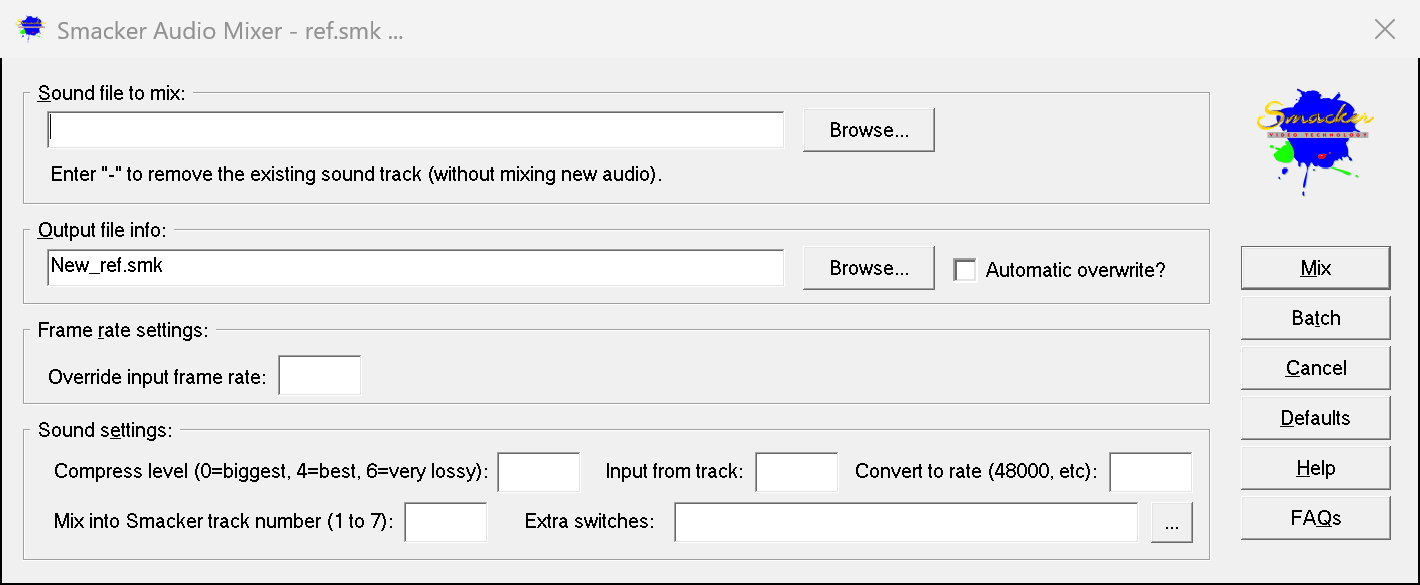
Jump to: Sound file | Output file | Frame rate | Sound settings | Buttons
Sound file to mix:
The sound file to put into the Smacker - a WAV, or any other sound or video file the tools can read. Use Browse to pick one from another folder. Enter "-" to remove the existing sound track instead of mixing one in.
Output file settings:
The Smacker file to write; the input file isn't touched. Use Browse to pick a folder with your mouse, and check "Automatic overwrite?" when you don't want to be asked before an existing file is replaced.
Frame rate settings:
Override input frame rate: Relabels the output with a new frame rate (fractional rates are fine, and a negative number is milliseconds per frame). The frames are not changed, so the animation plays faster or slower and the sound is laid against the new timing.
Sound settings:
The sound is compressed with Bink Audio, which sounds better and compresses far better (around 10 to 1 at level 4) than the original Smacker audio codec. If you must have the old codec for a legacy player, put /SmackerAudio in the extra switches field.
Compress level: How hard Bink Audio compresses: 0 is the biggest file, 4 the best trade-off and perceptually lossless on most material, 6 very lossy.
Input from track: Which of the sound file's tracks to read, when it has more than one (0, the first, by default).
Convert to rate: Resamples the sound to this rate (48000, 44100, etc.) as it is compressed. Start from a high quality recording - resampling can't add anything that wasn't recorded.
Mix into Smacker track number (1 to 7): The track the sound goes into. Mixing into a track that already has sound replaces it. The players count tracks from 0, so track 1 here is track 0 in the player's track list.
Extra switches: Anything you type here is passed to the mixer as command line switches - the "..." button shows the complete list. The useful ones: /StartFrame# pads the start of the sound with silence so it begins on that frame (a negative number is a millisecond offset instead); /Loop repeats a sound that is shorter than the animation until the end; /AudioStartOffset# shifts the sound by milliseconds; /NormalizePeak# and /NormalizeLoudness# normalize the sound to a peak in dB below full scale or a loudness in LUFS; /InputForceType#, /InputForceRate# and /InputSkip# read a headerless raw sample file by telling the mixer its format, rate and how many bytes to skip.
Buttons:
Mix: Writes the output Smacker file.
Batch: Adds this mix, with all of its settings, to the RAD Batch Editor instead of running it now.
Defaults: Puts every setting on the window back to its default.
Help and FAQs open this page and the FAQ in your browser.