
Compressing with Bink
Bink is our video codec. It scales from mobile devices up to 4K HDR on the latest game consoles and PCs, and it is used in hundreds of games every year.
Compressing with Bink is easy - highlight the file that you want to compress and hit the "Bink" button. The Bink compressor window opens, looking something like this. Click on a section of the screenshot for help on it, or use the links below to get right to the topic you need.
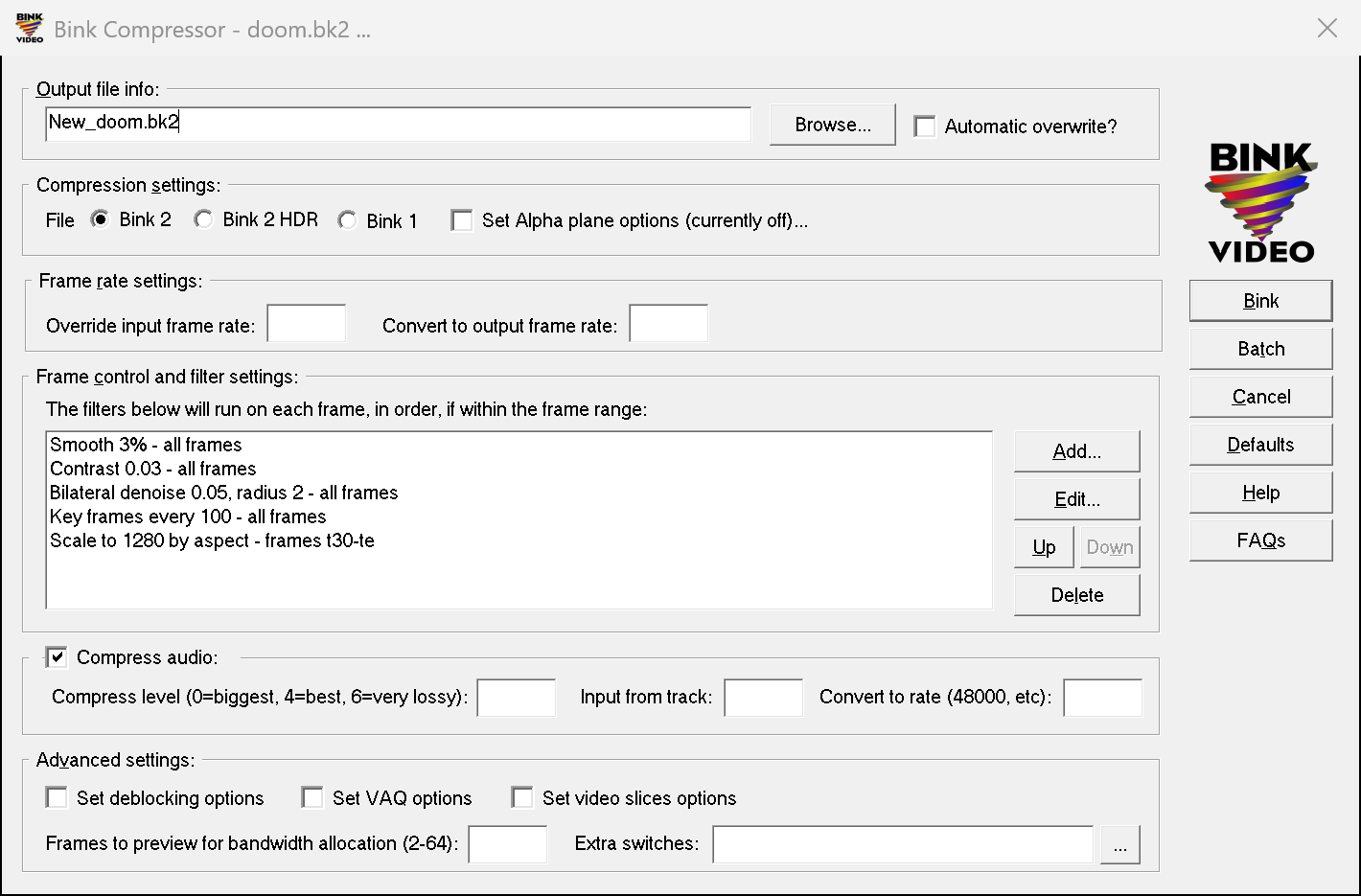
Jump to: Output file | Compression settings | Frame rate | Frame control and filters | Audio | Advanced | Buttons | Tips
Output file settings:
Enter the filename to compress to in this field, or use the Browse button to pick a folder with your mouse. The codec is chosen under "File format" below; use the matching extension, .bk2 for Bink 2 and Bink 2 HDR, .bik for Bink 1. Check "Automatic overwrite?" when you don't want to be asked before an existing file is replaced. Bink doesn't overwrite the destination until compression has completed, so if you set off an overwrite by accident, you can save the old file by canceling before it finishes.
Compression settings:
File format: Bink 2 is the default and what you want for everything current - it is the fastest to decode and the best quality. Bink 2 HDR compresses high dynamic range video (from EXR or other HDR sources) for HDR displays; "Max nits" is the brightness the input's white maps to, which for EXR files is 10000 by default. Bink 1 is for projects that still ship the original Bink 1 decoder.
Set Alpha plane options: This button opens a menu for the input's alpha (transparency) plane. By default the alpha plane is not included; choose "Include the alpha plane" to compress it along with the color. With the plane included, three further options appear:
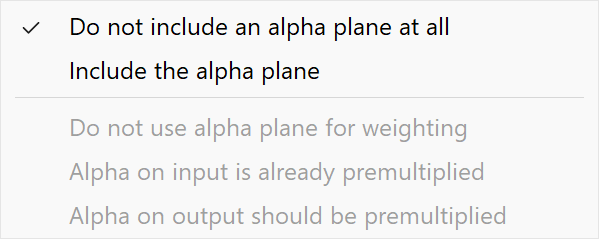
- Do not use alpha plane for weighting: normally Bink spends no bandwidth on pixels with an alpha of zero (they are invisible, so it fills them with whatever compresses best - see how Bink handles alpha). Turn this on if the color under zero alpha matters - it is then compressed normally, like every other pixel, rather than ignored.
- Alpha on input is already premultiplied: tell Bink when the input's color has already been multiplied by its alpha. Bink assumes straight (non-premultiplied) color otherwise. Bink needs to know so that the filters (scaling, smoothing) work correctly.
- Alpha on output should be premultiplied: write the color premultiplied by the alpha, which is what most engines want to draw with. Straight color is written otherwise. Set this to match whatever your programmer or engine is using. Premultiplied color already carries the alpha (a zero alpha pixel has to be black), so Bink compresses the color as supplied - there is no alpha weighting in this mode.
There is no data rate field on this window: Bink picks a data rate suited to the resolution and frame rate by itself. To set one, add a Data rate override entry to the filter list - with a blank frame range it applies to the whole movie, and with a range it applies to just those frames.
Frame rate settings:
-
Override input frame rate: Relabels the output with this frame rate (fractional rates are fine) without adding or removing any frames, so the same frames play faster or slower. Enter a negative number to give the rate in milliseconds per frame instead. You need this when you compress still images, which default to 10 frames per second.
-
Convert to output frame rate: Changes to this frame rate by duplicating or dropping frames, so the movie runs for the same length of time. A 15 fps animation converted to 30 fps has every frame processed twice; a 60 fps capture converted to 30 fps keeps every other frame. Frame lists in the filters below still count the input's original frames.
Frame control and filter settings:
The list in the middle of the window is a pipeline: every entry runs on each frame, in the order shown, top to bottom. Click Add... to pick an entry from the menu, Edit... to change the highlighted one, Up and Down to reorder, and Delete to remove. The order matters - crop before scale and you scale the cropped area, scale before crop and you crop the scaled frame. The one exception is Include frames: there is only ever one, it stays at the top of the list, and adding it again edits the existing entry.
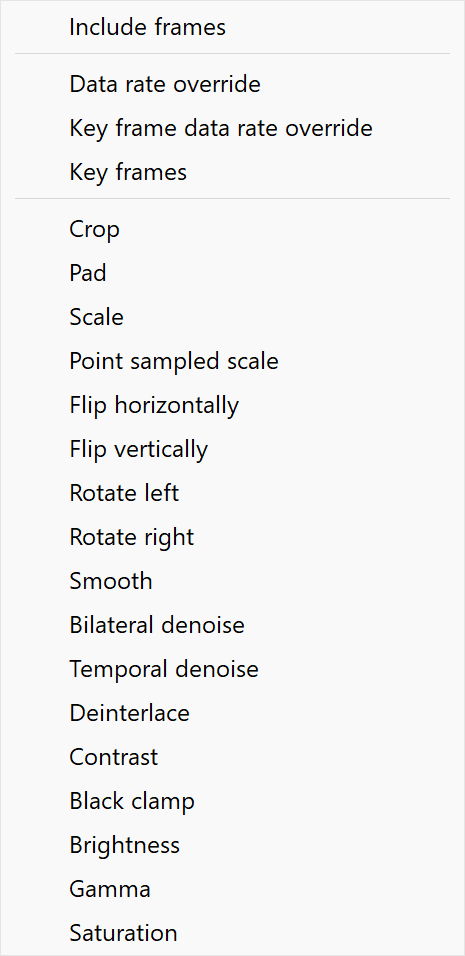
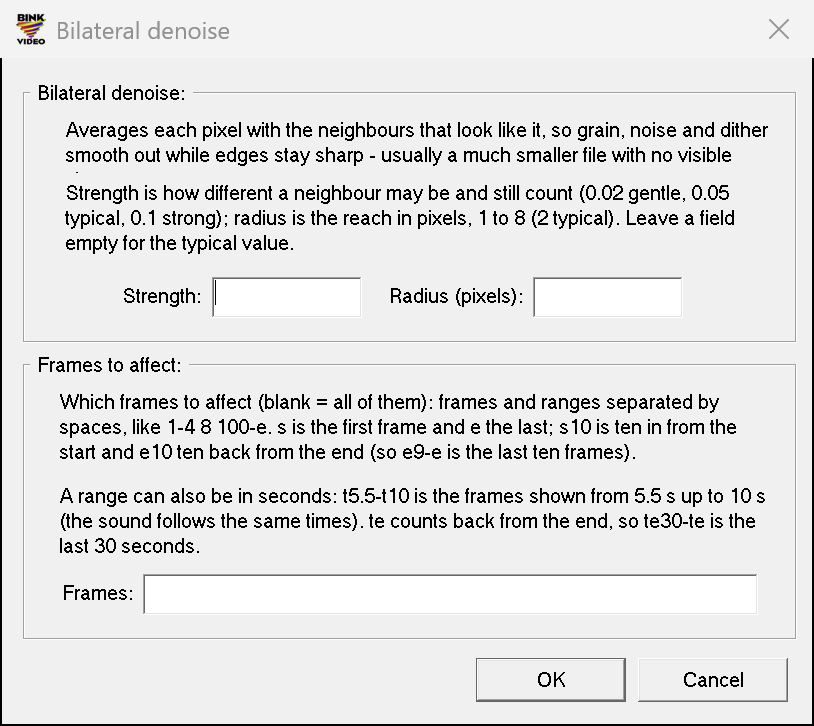
Frames to affect: Most entries have a frame range at the bottom of their dialog (the flips and rotations have no dialog and always apply to the whole movie). Leave the range blank to affect the whole movie, or enter frames and ranges separated by spaces, like 1-4 8 100-e. s is the first frame and e the last; s10 is ten frames in from the start and e10 ten back from the end, so e9-e is the last ten frames. A range can also be in seconds: t5.5-t10 is the frames shown from 5.5 s up to 10 s, and te30-te the last thirty seconds. Frames are numbered as in the input file, before any Include frames entry and before any frame rate conversion. You can add the same filter several times with different ranges and settings - a gentle smooth on the whole movie and a stronger one over a noisy section, for example. Where two data rate entries overlap, the one lower in the list wins; filters all run.
Include frames: Reads only the listed frames from the input and skips the rest, sound included (this is the one entry that needs a frame list). Use it to compress a section of a movie, to cut out a slate or a tail, or just to try settings on a short piece before you commit to the whole file. The other entries still count frames as they were before this skipping.
Data rate override: Sets the data rate for a range of frames - either in bytes per second (at least 1000; 0 is the automatic rate), or as a percentage (1 to 200) of the input file's average data rate. Without one of these, the compressor picks a rate suited to the resolution and frame rate automatically. The usual way to work is to compress once at the automatic rate, look at the result (and at the analyzer), then add an override to move the whole movie up or down, or just a troublesome section. An entry with a blank range is the data rate for the whole movie.
Key frame data rate override: Caps the peak data rate - the burst a key frame or a hard scene change is allowed - either as a multiple of the data rate (1.0 to 10.0, normally 3) or in bytes per second. Peak rate is what a streaming device has to keep up with; lower it if playback from a slow device stutters at scene changes, and leave it alone otherwise.
Key frames: Makes the listed frames key frames - frames that don't depend on the frames before them, so playback can start or seek there. Give a count to make one key frame every so many frames within each range instead (100 for one every hundred frames). Key frames cost bandwidth and decode time, so only add them where you need to seek or loop.
Crop: Keeps the part of the frame starting at left, top and width by height pixels big. Any field can be left empty - an empty left or top starts at the frame's edge, an empty width or height keeps everything out to the right or bottom edge.
Pad: Centers the frame on a black frame of this size, letterboxing or pillarboxing it. A side left empty keeps its size; a size smaller than the frame crops the middle out instead.
Scale: Resizes the frame with a high quality resampling filter. Each side is a size in pixels, 0 to keep the aspect ratio from the other side, or a negative number for a multiple of the current size (-2 is twice, -0.5 is half). -1 means the movie's original size, before any filter. Set one side or both.
Point sampled scale: The same sizes, but pixels are duplicated or dropped rather than resampled. Use it for pixel art and for exact integer scales where you want hard pixel edges rather than a smooth resize.
Flip horizontally / Flip vertically: Mirrors the frame left to right, or top to bottom. These have no settings, so they are added straight to the list.
Rotate left / Rotate right: Turns the whole movie a quarter turn, swapping its width and height.
Smooth: Blurs the frame by a percentage. 1% is enough to remove the invisible high frequency detail that costs bits for nothing, which makes the video compress much better - a slightly smoothed video is a much smaller file at the same quality. 100% is extremely blurry.
Bilateral denoise: Averages each pixel with the neighbors that look like it, so grain, noise and dither smooth out while edges stay sharp - usually a much smaller file with no visible change. Strength is how different a neighbor may be and still count (0.02 gentle, 0.05 typical, 0.1 strong); radius is the reach in pixels, 1 to 8 (2 typical). Leave a field empty for the typical value. This is the first filter to reach for on camera footage.
Temporal denoise: Blends each pixel toward the same pixel of the previous frame when it barely changed, so noise that flickers from frame to frame averages away and the video compresses much better. Anything that moved is left alone. For grainy camera footage - on clean, noise-free renders it has nothing to remove and can make the file bigger. Strength is how much a pixel may change and still count as noise (0.01 gentle, 0.03 typical, 0.06 strong).
Deinterlace: Keeps one field - the even or the odd lines - and fills in the other from it, so interlaced video loses its comb teeth. Blending averages the two fields instead of taking one.
Contrast: Boosts the contrast - the darks get darker and the brights brighter, stretching about the middle. 0 changes nothing, 0.03 is a mild boost, 0.1 is strong, 0.25 very strong (0.5 is the most). A mild boost pushes almost-black pixels to black, which compresses better and usually looks better too.
Black clamp: Everything at or below this level (0 = black, 1 = white) becomes black. 0 changes nothing; 0.1 kills the noise in the darkest tenth, which helps compression. Good for dark scenes and captured titles where the black isn't quite black.
Brightness: Multiplies the brightness: 1.0 changes nothing, 0.5 is half as bright, 2.0 twice as bright (anything over white clips). Give an end multiplier too for a fade: each frame range runs from the start value to the end value, so 0 to 1 over s-s29 fades the first thirty frames in from black, and 1 to 0 over e29-e fades the last thirty out.
Gamma: Bends the brightness curve between black and white, which stay put: above 1.0 lifts the midtones (1.2 is gentle, 2.0 strong), below 1.0 pushes them down (0.8 gentle, 0.5 strong). 1.0 changes nothing.
Saturation: Scales how far every color is from gray: 1.0 changes nothing, 0 is black and white, 0.8 is a little muted (which also compresses a little better), 1.3 is vivid.
Audio settings:
Compress audio: Check this to carry the input file's sound into the Bink. Uncheck it for a silent video (you can always mix sound in later with the audio mixer).
Compress level: How hard Bink Audio compresses: 0 is the biggest file, 4 is the best trade-off and perceptually lossless on most material, 6 is very lossy. Bink Audio reaches around 10 to 1 at level 4 without audible artifacts, so leave it at 4 unless you are squeezing a file for size.
Input from track: Which of the input file's audio tracks to use (0, the first, by default). Use this when a source has several tracks - different languages, or a commentary track.
Convert to rate: Resamples the sound to this rate (48000, 44100, etc.) as it is compressed. It is there for convenience - for the best quality start from a high quality recording, since upsampling a 22 kHz track to 48 kHz can't add anything that wasn't recorded.
Advanced settings:
Set deblocking options: Deblocking smooths the block edges that show up at lower data rates. Full deblocking (the default) is the best quality. Turning off up-and-down deblocking makes decoding faster, turning off left-to-right deblocking slightly faster, and turning off both is the fastest decode. Only trade it away when you are decode bound on a slow target and the data rate is high enough that the blocks don't show.
Set VAQ options: Variance adaptive quantization moves bits from busy areas, where errors hide, to flat ones, where they show. Medium VAQ is the default. Light VAQ is best on easy to compress videos, heavy VAQ on fast moving ones, and no VAQ suits videos that mix static and moving areas. Usually leave it alone unless someone from RAD asks you to change it.
Set video slices options: A Bink 2 frame is split into horizontal slices that decode on separate cores. 4 slices (the default) suits current hardware; 2 or 3 suit platforms with fewer decoding cores; 8 lets eight threads share a frame, for 4K and stereo video on high-end PCs. More slices cost a little compression, so don't go above what your target can use.
Grayscale: Bink 1 only - compresses the luminance alone, with no color.
Frames to preview for bandwidth allocation (2-64): How many frames ahead Bink looks when it decides where to spend bandwidth. Picture a black screen that suddenly cuts to a full picture - Bink can take the bytes the easy black frames didn't need and give them to the hard frame, while never exceeding the peak rate. More frames means better allocation and more memory while compressing. A good rule of thumb is 12 for CGI and 8 for live video.
Extra switches: Anything you type here is passed to the compressor as command line switches, so the whole command line interface is available from the window - the "..." button shows the complete switch list. Useful ones that have no field of their own: /DataRateByQuality0.9 compresses to a quality (0.001 to 1.0) rather than a rate; /KeyRate# is manual rate control where every frame gets the data rate exactly; /Nits# overrides the input's HDR brightness; /AudioStartOffset# shifts the sound by milliseconds; /NormalizePeak and /NormalizeLoudness normalize the sound to a peak in dB or a loudness in LUFS; /CPUs# limits the number of threads; /Text"..." stores a note in the file header.
Buttons:
Bink: Starts the compression. While it runs you can preview the frames compressed so far, and you can stop at any point and keep what has been done.
Batch: Adds this compression, with all of its settings, to the RAD Batch Editor instead of running it now, so you can queue up a pile of jobs and run them unattended.
Defaults: Puts every setting on the window back to its default.
Help and FAQs open this page and the Bink FAQ in your browser.
Bink Tips:
- Start with the automatic data rate, look at the result, then add a Data rate override and move up or down from there. The analyzer shows you the average and the spikes.
- Add a Bilateral denoise to anything that came from a camera, and a 1% to 3% Smooth to almost everything. Both remove detail that costs bits without being visible, so the file gets smaller - compare the result and back off the strength if you can see the difference.
- A mild Contrast (0.03) or a small Black clamp darkens the almost-blacks, which compresses better and looks better.
- Trying settings? Add an Include frames entry with a short range (or a time range like t30-t40) so each experiment takes seconds rather than minutes, then delete it for the final run.
- Use the Preview button while compressing to play the frames finished so far, and stop a compression whose settings you don't like rather than waiting for it to finish.
- The Bink compressor is heavily multi-threaded - more CPU cores mean a faster compression (how much faster depends on the video, the settings and the machine).