
Analyzing Your Videos
The "Analyze" button is one of the most handy features in the RAD Video Tools. Use this button to check general bandwidth use. The Analyze window can tell you a bunch about a Bink or Smacker file without even having to play it. It displays a visual representation of the video file's data-rate. Here is an example of the Analysis window from a Bink file:
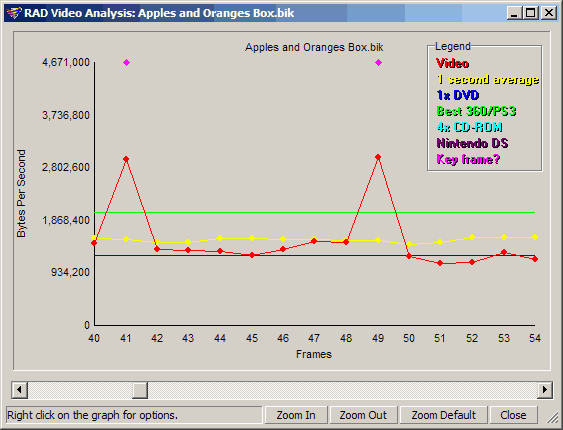
The graph is showing the data rate for the first few seconds of a Bink movie. You can see how the data rate moves up and down based on the movie content. You can see the key frames, marked as red dots on the timeline.
You can also see portions of the movie, where the data rate massively oscillates around going really high and then really low - this usually means those portions of the video are frame doubled (30 hz, being doubled up to 60 hz).
On the help menu in the upper right (accessed by hitting F1 or H), you get other options, so you can look at the movie as a moving average, or add extra visualizations for DVD rate and common hard drive rates.
So, the analysis option can not only tell you when you exceeded your target data-rate, but it can also tell you when you've over-compressed. If the analysis shows that you are well under your data rate, then you can go back and re-compress for better quality. I find the analysis option so handy that I now automatically check out my videos after every compression. That way I know I'm always getting the best possible quality for my target.